Lesson 3: Code Generation with Claude. Part 2
In the previous lesson, we explored how ChatGPT can help us generate code. In this lesson, we will continue to expand our knowledge and skills by using ChatGPT to create and style a button in our web application.
First, let's look at this process using HTML as an example:
- Creating a button
First, we need to create a button. Let's ask ChatGPT how to create a simple button in HTML. In this case, the prompt might look something like this: "ChatGPT, how can I create a button in HTML?" ChatGPT will provide you with a code example that you can use:
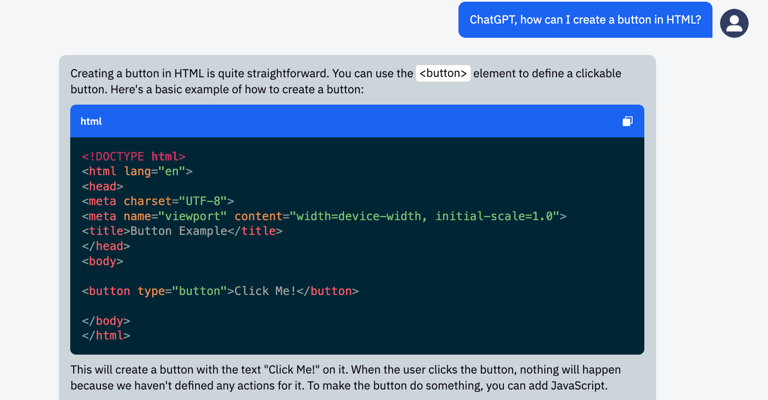
Paste this code into your HTML file and refresh the page. You will now see a button on your website.
- Styling the button
Now that we have a button, let's work on its styling. We want to change the color of this button to light blue. Let's ask ChatGPT how to do this. The prompt might look something like this: "ChatGPT, how can I change the button color to light blue in HTML?"
ChatGPT will once again provide us with a code example:
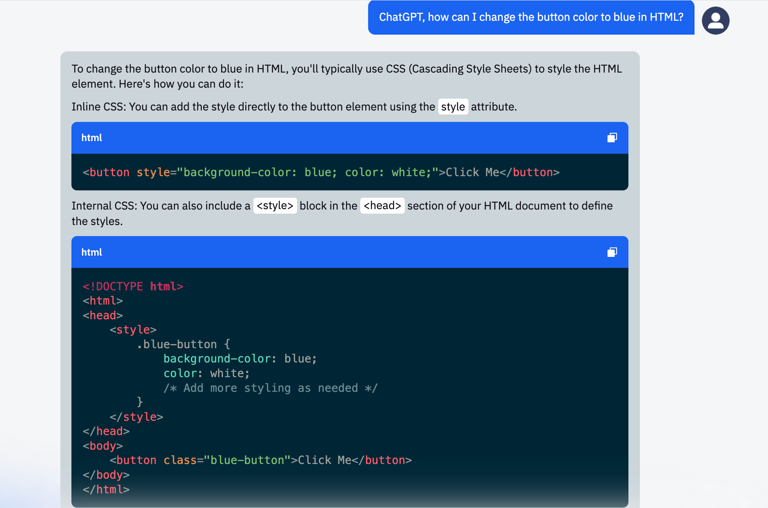
Paste this code into your HTML file and refresh the page. Your button is now light blue. If you want to use a different shade of blue, you can continue consulting with ChatGPT, and it will suggest various color code options.
Now let's see how we can accomplish the same thing in React:
- Creating a button in React
Let's start by creating a button. We can ask ChatGPT how to create a simple button in React. In this case, the prompt might look something like this: "ChatGPT, how can I create a button in React?"
ChatGPT will provide you with a code example that you can use:
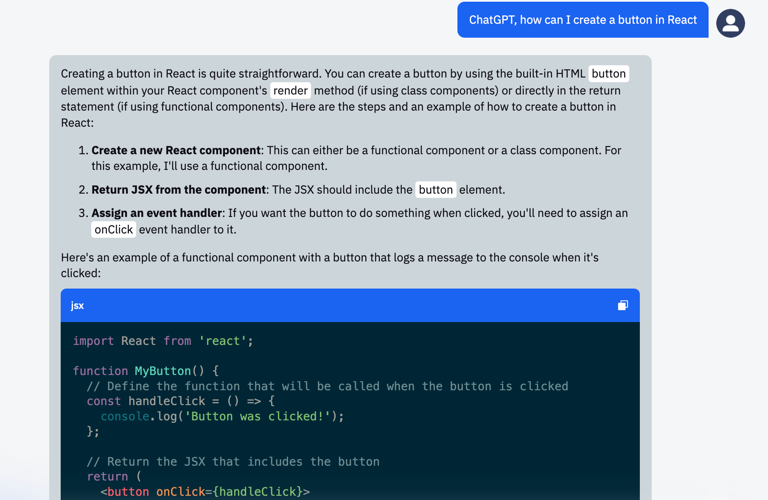
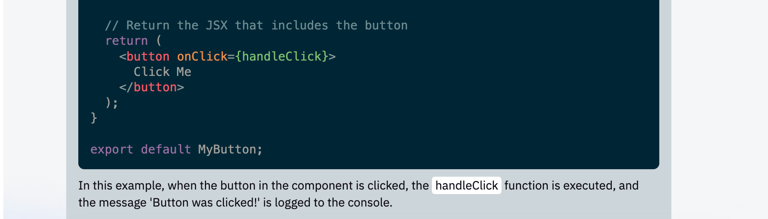
Paste this code into your React file. You will now see a button in your web application.
- Styling the button in React
Now that we have a button, let's work on its styling. We want to change the color of this button to light blue. Let's ask ChatGPT how to do this. The prompt might look something like this: "ChatGPT, how can I change the button color to light blue in React?"
ChatGPT will once again provide us with a code example:
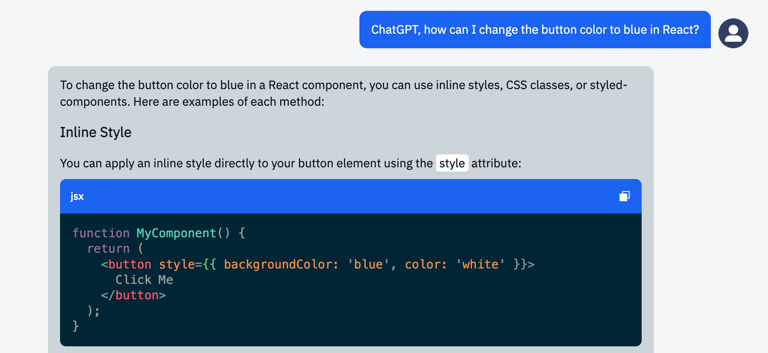
Paste this code into your React file. Your button is now light blue. If you want to use a different shade of blue, you can continue consulting with ChatGPT, and it will suggest various color code options.
It is important to remember that ChatGPT does not save context between different sessions, so if you want to continue a discussion while maintaining context, make sure you do it within the same session.
Now try it yourself!
Practical Assignment
Task: Try creating a React web application with two buttons of different colors, using ChatGPT to generate the code.
Instructions:
- Ask ChatGPT to explain how to create an application named my-app using Vite.
- Create a new React application using the command "npm create vite my-app" in the command line.
- Select React, and then select JavaScript.
- In the terminal, enter cd my-app.
- Next, enter npm install and npm run dev.
- Use ChatGPT and give it the prompt: "Add two buttons, 'Hello' and 'Goodbye', to the main screen of the application."
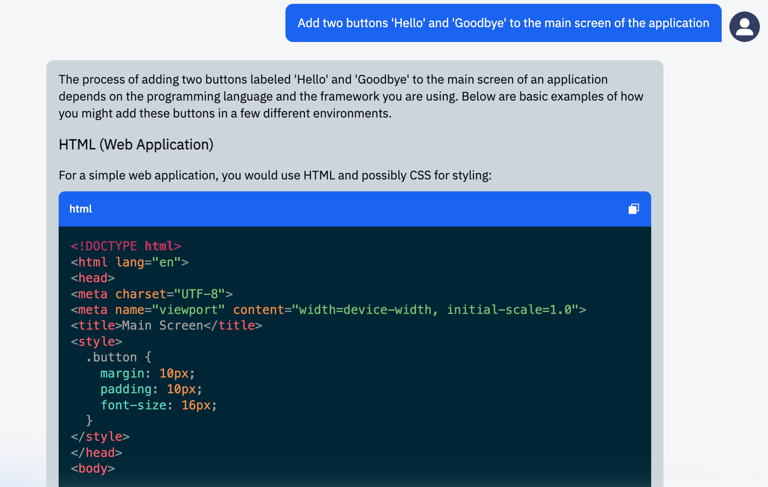
- Then ask it to make one button green and the other red.
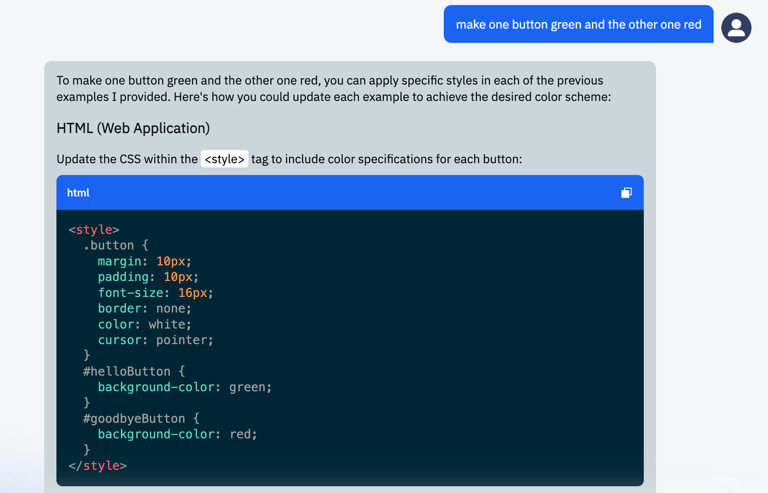
- Next, let's ask ChatGPT to make it so that clicking the first button displays the text "Hello", and clicking the second one displays "Goodbye":
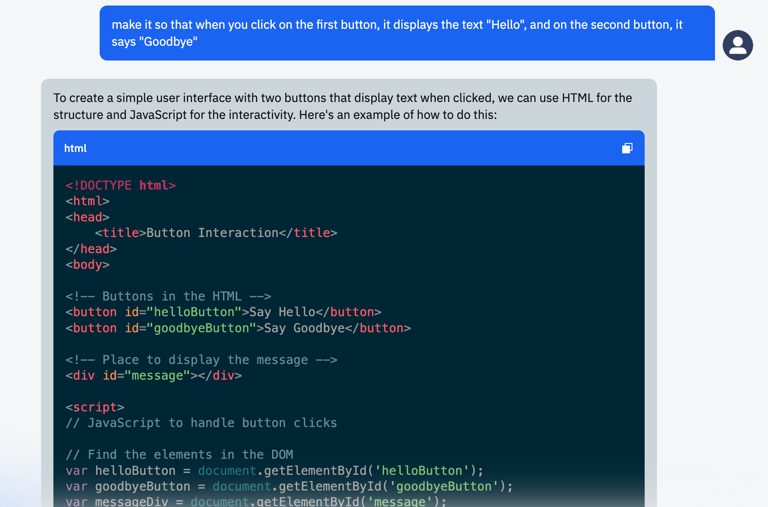
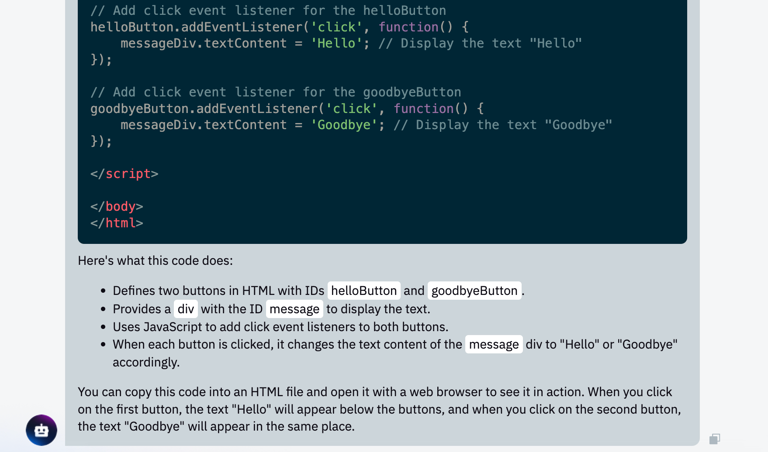
In this example, we created two buttons: one light blue and one red. Remember that your buttons can be any color you choose.
Conclusion
As we have seen, using ChatGPT allows you to generate code, suggest styles, and find solutions for building a website, acting as a sort of developer assistant. And although the chatbot can sometimes make mistakes, it can be an invaluable tool when used correctly and asked the right questions.