Lesson 6. Connecting HTML and JavaScript: Creating a Simple Web Form
Creating web forms is an important element of web design and web development, as they are the primary way users interact with your site. Today, we will ask ChatGPT to help us create a web form.
Step 1: Understanding Form Elements
Before we start creating a web form, let's figure out what elements it can include:
- Text fields (<input type="text">): These are fields that allow users to enter text information, such as their first name, last name, email address, etc. When you create a text field, make sure it has a corresponding <label> that describes what is expected in that field.
- Radio buttons (<input type="radio">): Radio buttons allow users to select one option from several choices. All radio buttons in a group must have the same name attribute to indicate that they are part of the same group.
- Checkboxes (<input type="checkbox">): Checkboxes allow users to select multiple options from the provided choices. Like radio buttons, each checkbox in a group must have the same name attribute.
- Submit buttons (<input type="submit">): Submit buttons are used to send information from the form to the server. When a user clicks the submit button, the form collects all the data entered by the user and sends it to the server.
Step 2: Creating a Form with ChatGPT
Now that we know the basic form elements, we can ask ChatGPT to create a simple web form.
Your prompt might look like this: "ChatGPT, create a simple web form to collect user information, including fields for name, email address, radio buttons for selecting gender, and checkboxes for selecting interests."
Response:
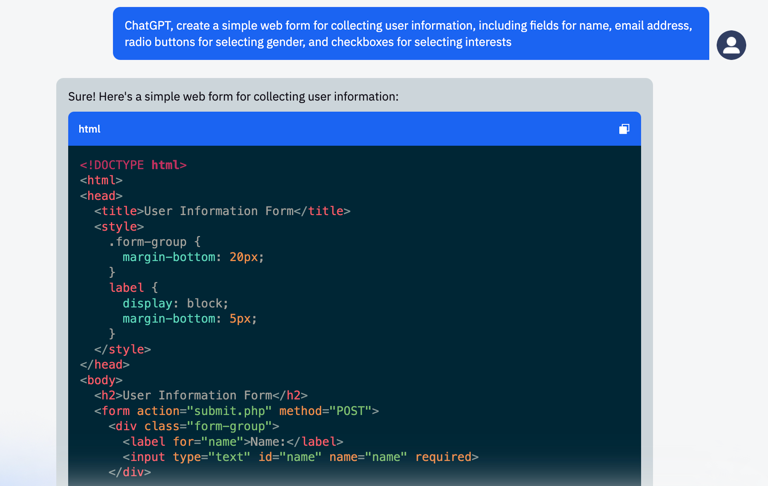
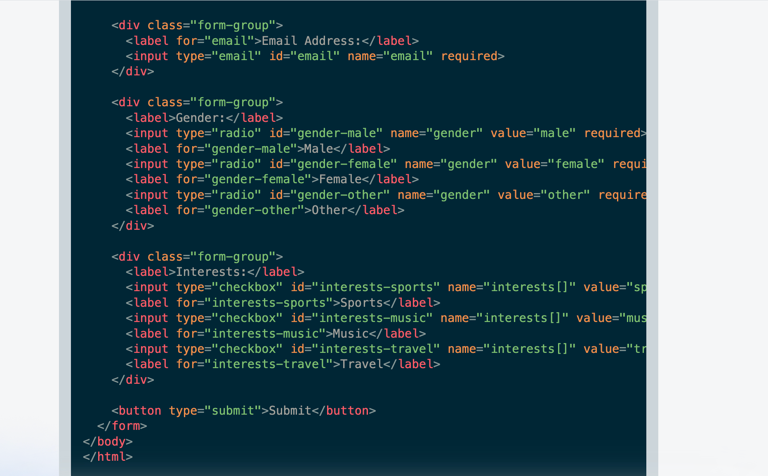
When ChatGPT provides you with the HTML code for the form, copy it and paste it into an .html file on your computer. You can also view it in any browser by opening the file.
Step 3: Processing Form Data
Once the form is created and filled out by the user, this data needs to be processed somehow. The simplest way is to send the data to a server. However, for demonstration purposes, we can use JavaScript to display this data directly on the page.
First, we need to create a JavaScript file. Create a new file with a .js extension on your computer and save it in the same folder as your HTML file.
Now we can ask ChatGPT to help us create a simple JavaScript code that collects data from the form and displays it on the page. For example: "ChatGPT, how can I use JavaScript to collect data from a form and display it on the page?"
Response:
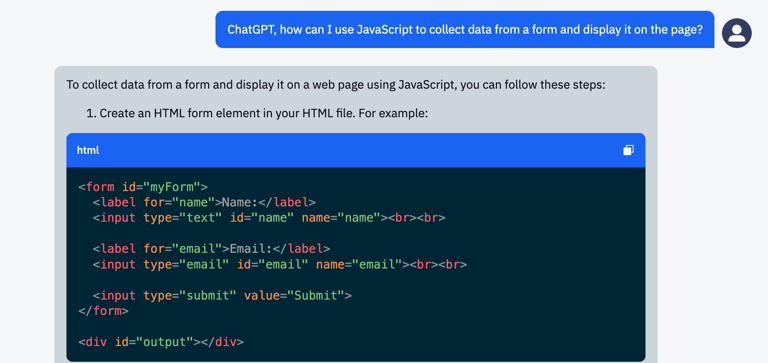
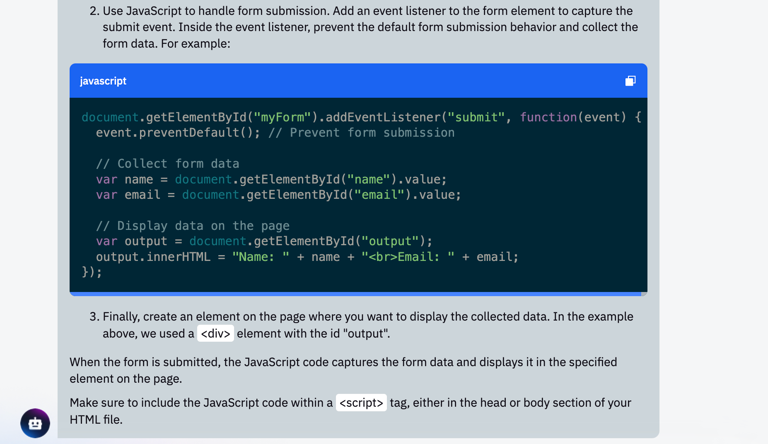
After ChatGPT provides you with the JavaScript code, copy it, create a main.js file, and paste the resulting code there.
Finally, link your JavaScript file to the HTML file by adding the following code before the closing </body> tag of your HTML file: <script src="main.js"></script>.
Practical Assignment
Task:
Your task is to create a simple web form for subscribing to a newsletter. The form should include fields for a name and email, as well as a button to submit the information.
Instructions:
- Request the HTML code:
Open a chat with ChatGPT and ask it to provide the HTML code for a subscription form. For example, you can ask: "Provide me with the HTML code for a newsletter subscription form that contains fields for name and email, and a button to submit the information."
- Save the HTML code:
Create a new file in any text editor, paste the received HTML code into this file, and save it with the ".html" extension. For example, you can name it "subscription_form.html".
- Request the JavaScript code:
Then, in the chat with ChatGPT, request the JavaScript code to process the subscription form. For example, you can ask: "Provide me with the JavaScript code that will process the subscription form, outputting the information entered by the user to the browser console."
- Save the JavaScript code:
Create a new file in a text editor, paste the received JavaScript code into this file, and save it with the ".js" extension. For example, you can name it "form_processing.js".
- Link the JavaScript to the HTML:
Open the HTML file and add the following code before the closing </body> tag:
<script src="form_processing.js"></script>
This line of code links your JavaScript file to the HTML file. Make sure the filename matches the one you used when saving the JavaScript file.
- Test the form:
Open the HTML file in a browser and try submitting the form by entering some data. You should see the entered data in the browser console.
Example:
Here is an example of what the HTML and JavaScript codes you might receive from ChatGPT could look like:
- Prompt: "Provide me with the HTML code for a newsletter subscription form that contains fields for name and email, and a button to submit the information"
Response:
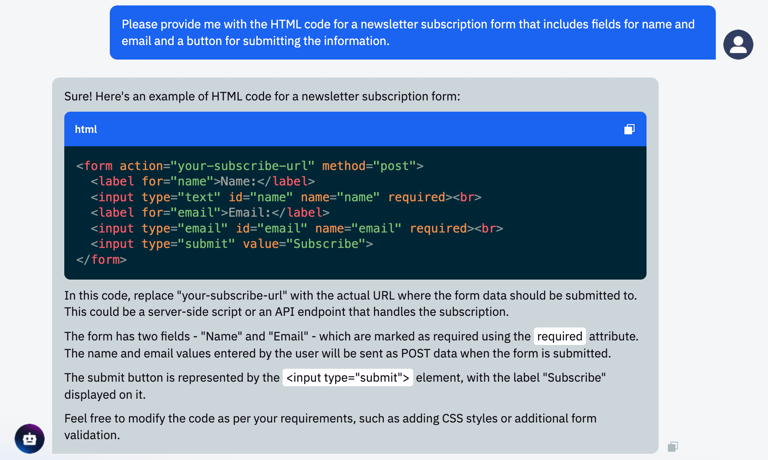
- Prompt: Provide me with the JavaScript code that will process the subscription form, outputting the information entered by the user to the browser console
Response:
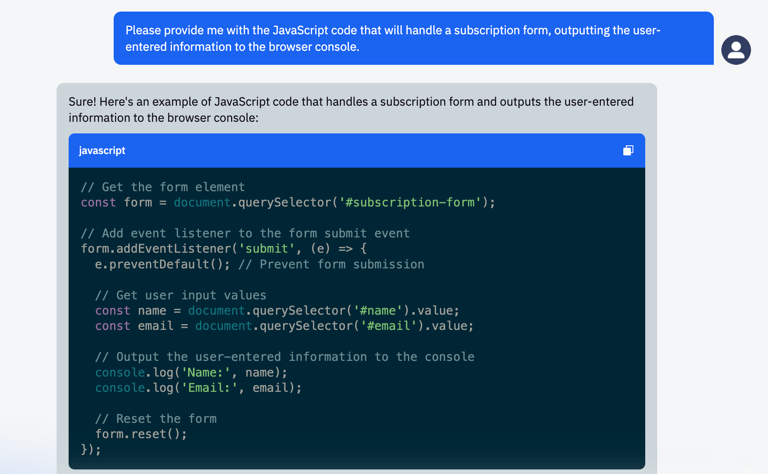
And we paste this code into the form_processing.js file.
- Paste it into the html file:
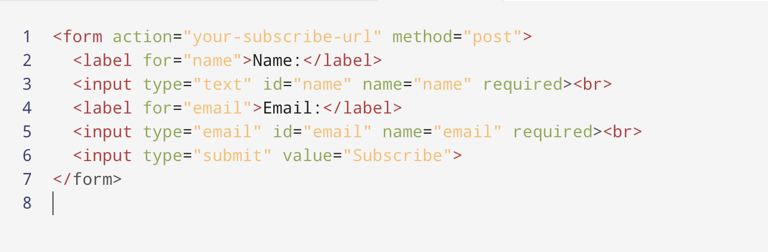
- And we get a simple web form:

Conclusion
Mastering this material will allow you to create interactive elements on your website, making it more user-friendly and convenient. Remember that practice is the key to success, so don't stop experimenting and improving your skills.