Lesson 5: Creating a Landing Page: From Design to Implementation
In this lesson, we will explore how to use ChatGPT to create a landing page, including the design template, HTML structure, CSS styling, and JavaScript functionality. We will create a landing page for an imaginary online store and add a website header with the store's name and a navigation menu.
Step 1: Creating a Landing Page Template
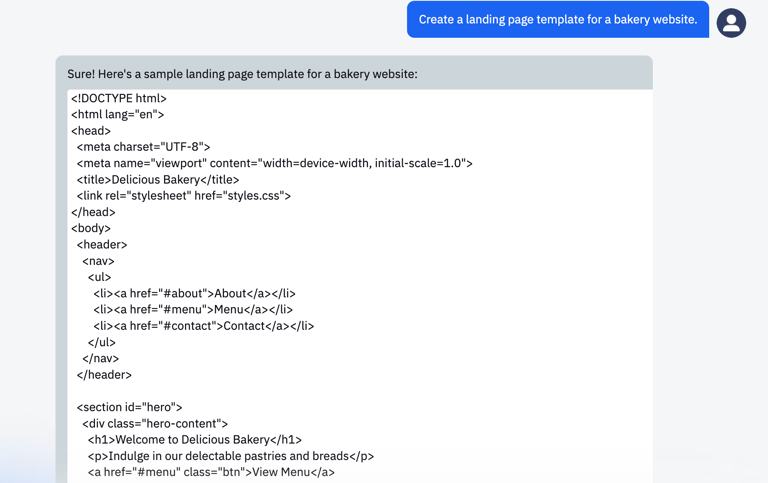
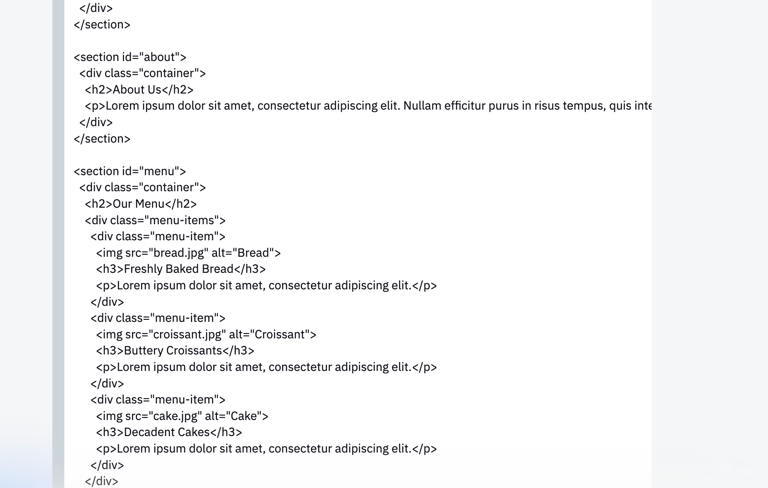
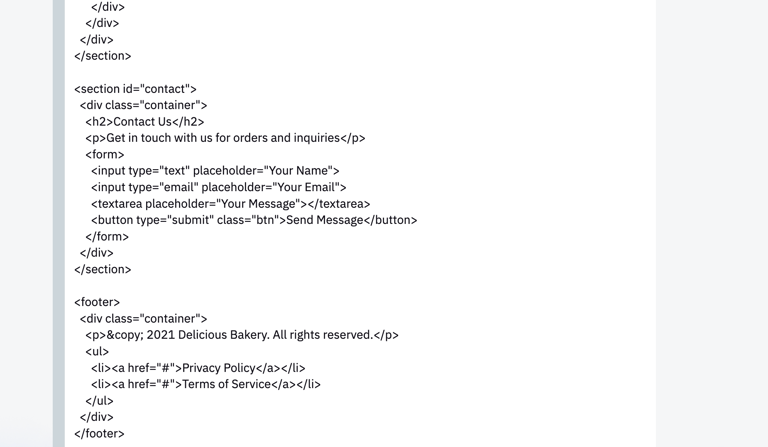
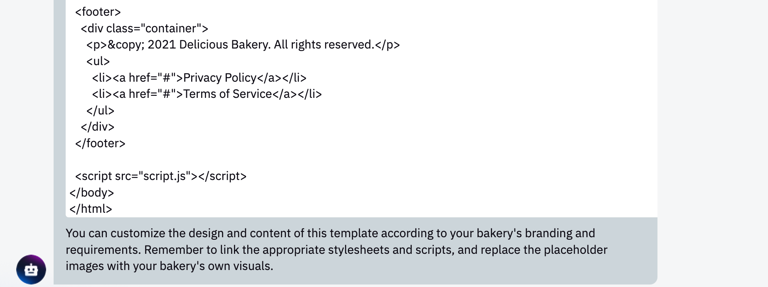
First of all, we need an idea of what our landing page should look like. We can ask ChatGPT to help us with the design. Formulate your prompt like this: "Create a landing page template for a bakery website." ChatGPT can provide you with a template description or even create a simple mockup:
Step 2: Generating HTML Code
Now that we have a design template, we can ask ChatGPT to generate the HTML code.
Prompt: "Write the HTML code for a bakery website based on the proposed template."
Response:
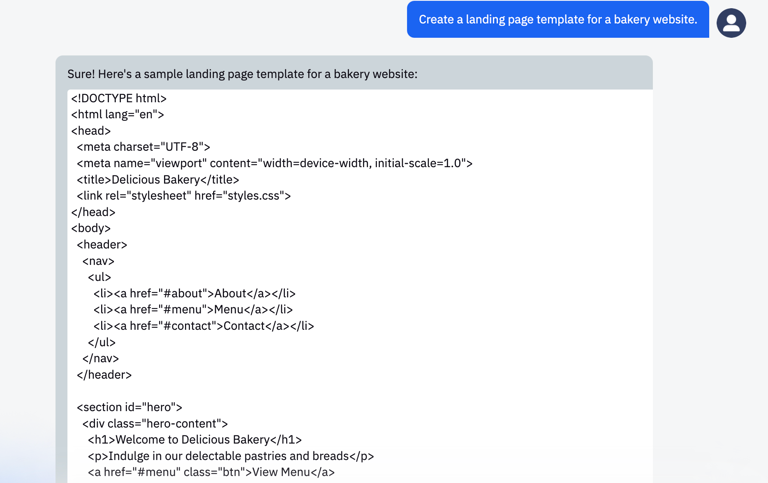
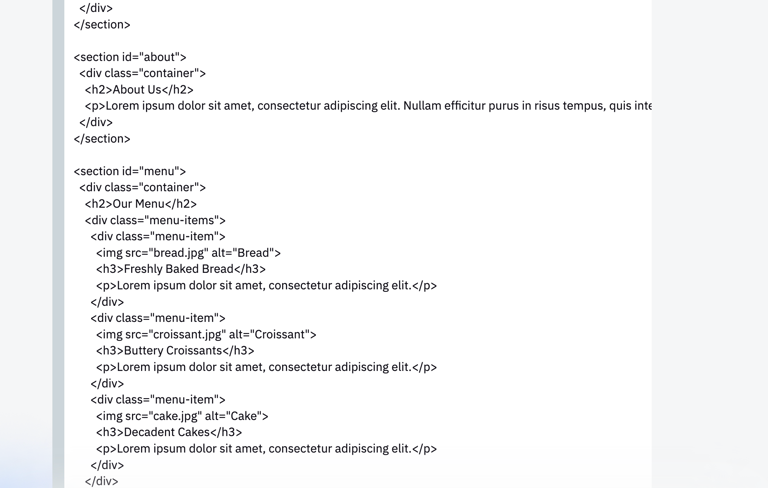
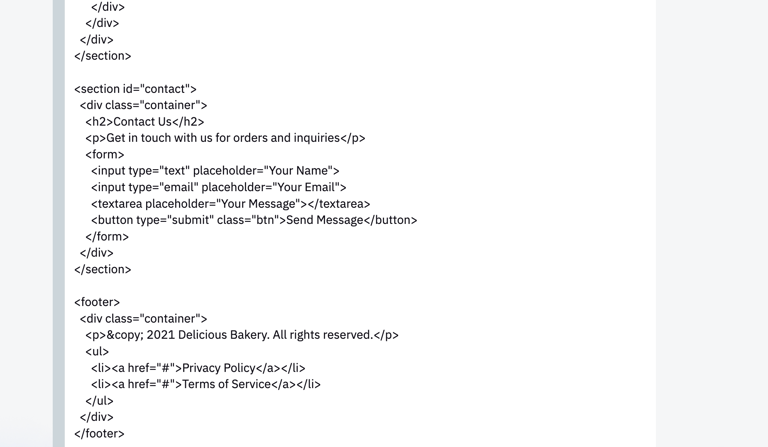
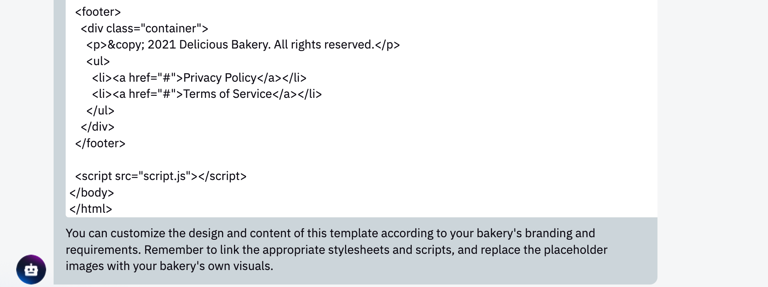
You may need to tweak the resulting code to fit your requirements.
Step 3: Adding CSS Styles
With the basic HTML code in our hands, we can proceed to add CSS styles to give our website an aesthetic look.
Prompt: "Select CSS styles for the bakery website."
Response:
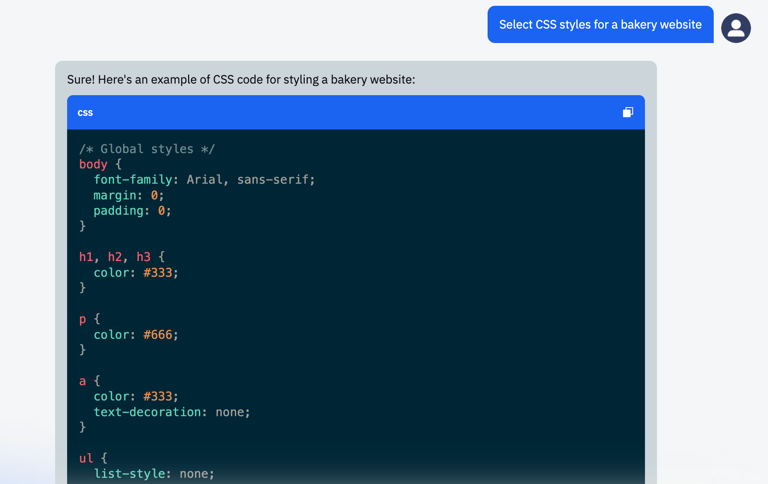
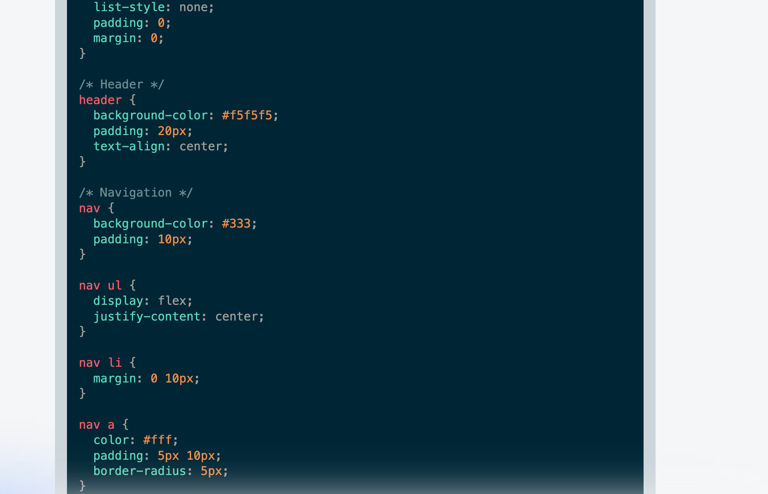
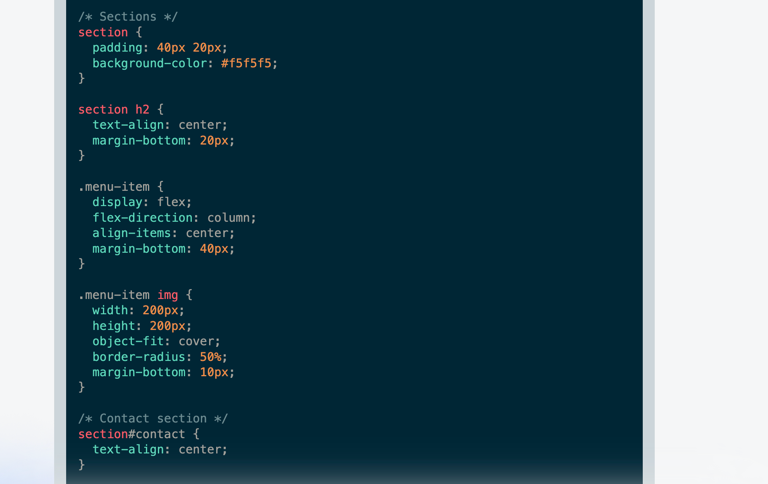
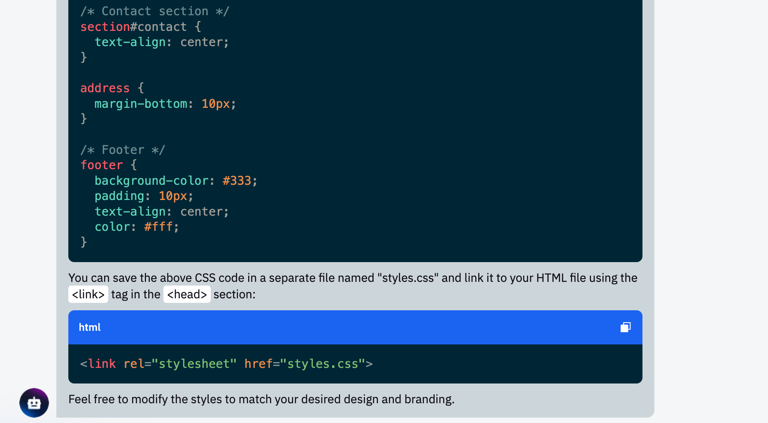
The resulting styles can be applied to your project.
Step 4: Adding JavaScript Functionality
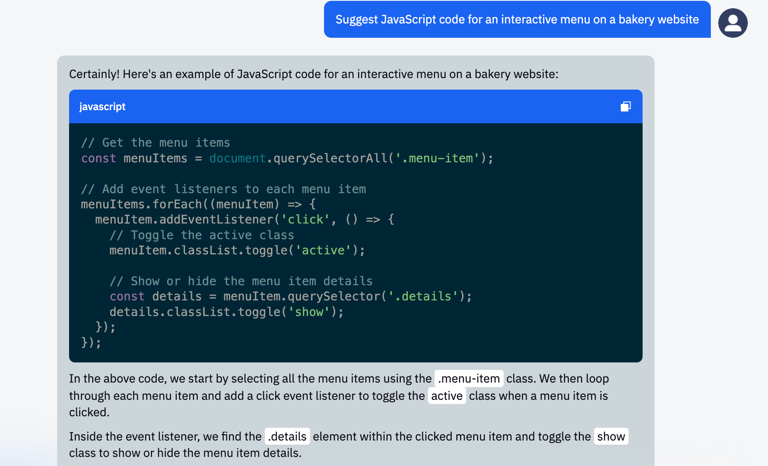
To add interactivity to the website, we will use JavaScript. This could be an interactive navigation menu, image sliders, or other elements.
Prompt: "Suggest JavaScript code for an interactive menu on the bakery website."
Response:
Step 5: Adding a Website Header
The main focus of this lesson will be on creating a website header that includes the bakery's name and a navigation menu.
Prompt: "Create a header with the bakery's name and a menu for the website."
Response:
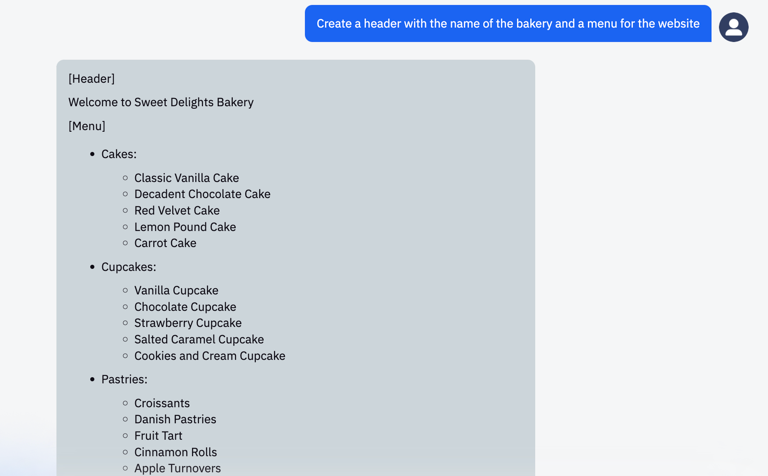
ChatGPT will provide you with the corresponding code.
With these steps, you will be able to create your own bakery website using ChatGPT. It's exciting and allows you to focus on the creative side of the process.
Practical Task
Task:
Following these steps, try to create your own website. You can choose any theme, add any details to the description, and don't be afraid to experiment!
Instructions:
- Setting the task: Determine what your website should look like. In our case, we will create a website for a cafe. We might need a name for our website, a list of dishes we want to sell, and information about the cafe that we want to include.
- Asking ChatGPT: With this information, let's ask ChatGPT with a prompt in the following format: "Create a landing page template for the 'Ocean' cafe website." ChatGPT will generate a code template in HTML, CSS, and JavaScript that can be used as a foundation for your website.
- Creating an HTML file: Open a text editor (for example, Notepad or Sublime Text) and create a new file. Paste the generated HTML code into it and save the file with a .html extension, for example, "index.html".
- Creating a CSS file: Create a new file in your text editor. You can select "File > New File" in the editor's top menu. Copy the CSS code generated by ChatGPT and paste it into the new file. Save this file in the same folder as your HTML file. Select "File > Save As" and specify a file name with a .css extension. For example, you can name the file "styles.css". Now you need to link this CSS file to your HTML file. To do this, open the HTML file and inside the <head> tag, add the following code: <link rel="stylesheet" href="styles.css">. This tells the browser to use the styles from the "styles.css" file to format your web page.
- Creating a JavaScript file: Similar to creating a CSS file, create a new file in your text editor. Copy the JavaScript code generated by ChatGPT and paste it into the new file. Save this file in the same folder as your HTML file, specifying a file name with a .js extension. For example, you can name the file "script.js". Now you need to link this JavaScript file to your HTML file. To do this, open the HTML file and right before the closing </body> tag, add the following code: <script src="script.js"></script>
This tells the browser to use the scripts from the "script.js" file on your web page.
- Testing the website: Open your HTML file in a web browser and check how your website works. If everything is done correctly, you should see the website structure, the styling defined in the CSS file, and the functionality defined in the JavaScript file.
P.S. If you are having trouble, ask ChatGPT to combine all the instructions into one ready-to-use code.
-
Ask ChatGPT to fill the website with content by giving it the following prompt: "Add images, here are the URLs of the required pictures: [insert URLs]".
-
You can also add a background to your website by making the following prompt: "Add a background to the website, here is its URL: [insert URL]"
The main thing is, don't be afraid to experiment!